Image Modal CMS HTML Block subtype - #2362
Conversation


 ghost
assigned
ghost
assigned

|
Studio team has a story for reviewing this PR (STUD-1256). I recommended to Giulio that he start writing a Jasmine test for imageModal.js. Giulio will also provide documentation on how the feature should work. @mhoeber Adding you so you are aware of this PR. |
|
At today's planning, Studio thought it made more sense for LMS to review this PR (so @singingwolfboy will not be reviewing). I have moved the Issue, and it is now LMS-2146. |

|
@caesar2164 I haven't had a chance to check out the new draggabilly version yet, but I wanted to check with you about the other image zoom that was merged to master: will that cover this use case as well? It seems like having two image zoom components might be confusing for course authors. If the other one won't serve, can you outline the reasons why it won't work for your use cases? (I'll be out for a few days next week, but will review this as soon as I'm back.) |
|
@frrrances - unfortunately, the zooming image won't work for our use case. Also, I think mine is a better starting point for a general "breakout" system to allow users to use their full browser window area, while the zooming image has very limited uses. Here's a quote from @gbruhns (Stanford courseops) explaining why we need image modal, and can't use "zooming image":
|


There was a problem hiding this comment.
I'm not sure how I feel about some of this duplication. Is there any way to split out this logic to a common function where we just pass in a single jQuery object (this or this.closest('.imageModal'), presumably) and do all of the operations on that object?


|
@frrrances is out, so @talbs volunteered to help step in and take a look. |
There was a problem hiding this comment.
Why is the alt being deliberately left blank here? Why doesn't use the same alt-text as the small image?
7 participants


@frrrances - here's the image modal branch! with Draggabilly and everything!
Here are some screenshots of how imageModal works. (This is using the Stanford theme, but would work equally well with the default courseware theme.)
When you first load an image modal it presents like this:
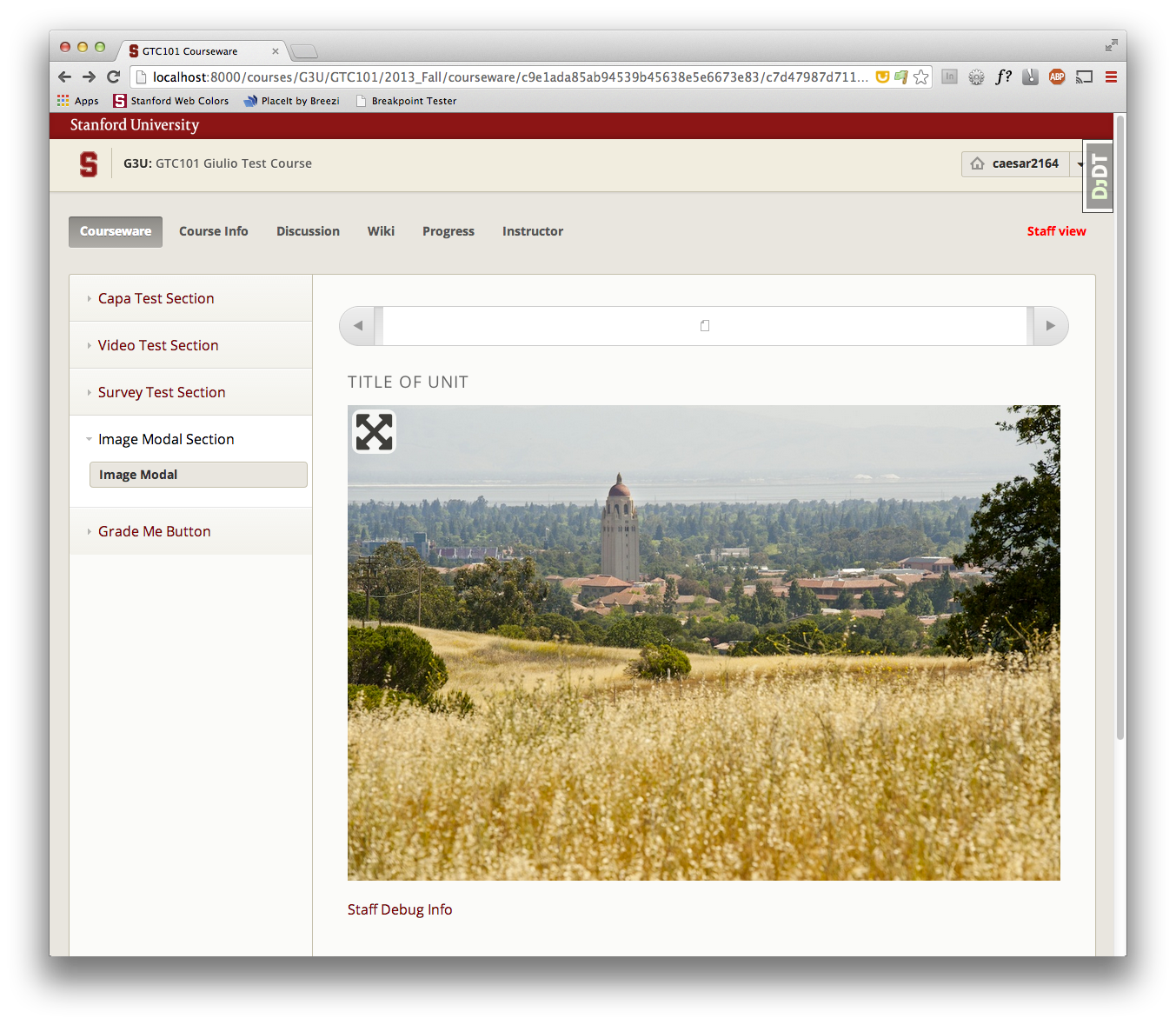
When you click on the image, it goes into the modal interface (starting in "fit to screen"):
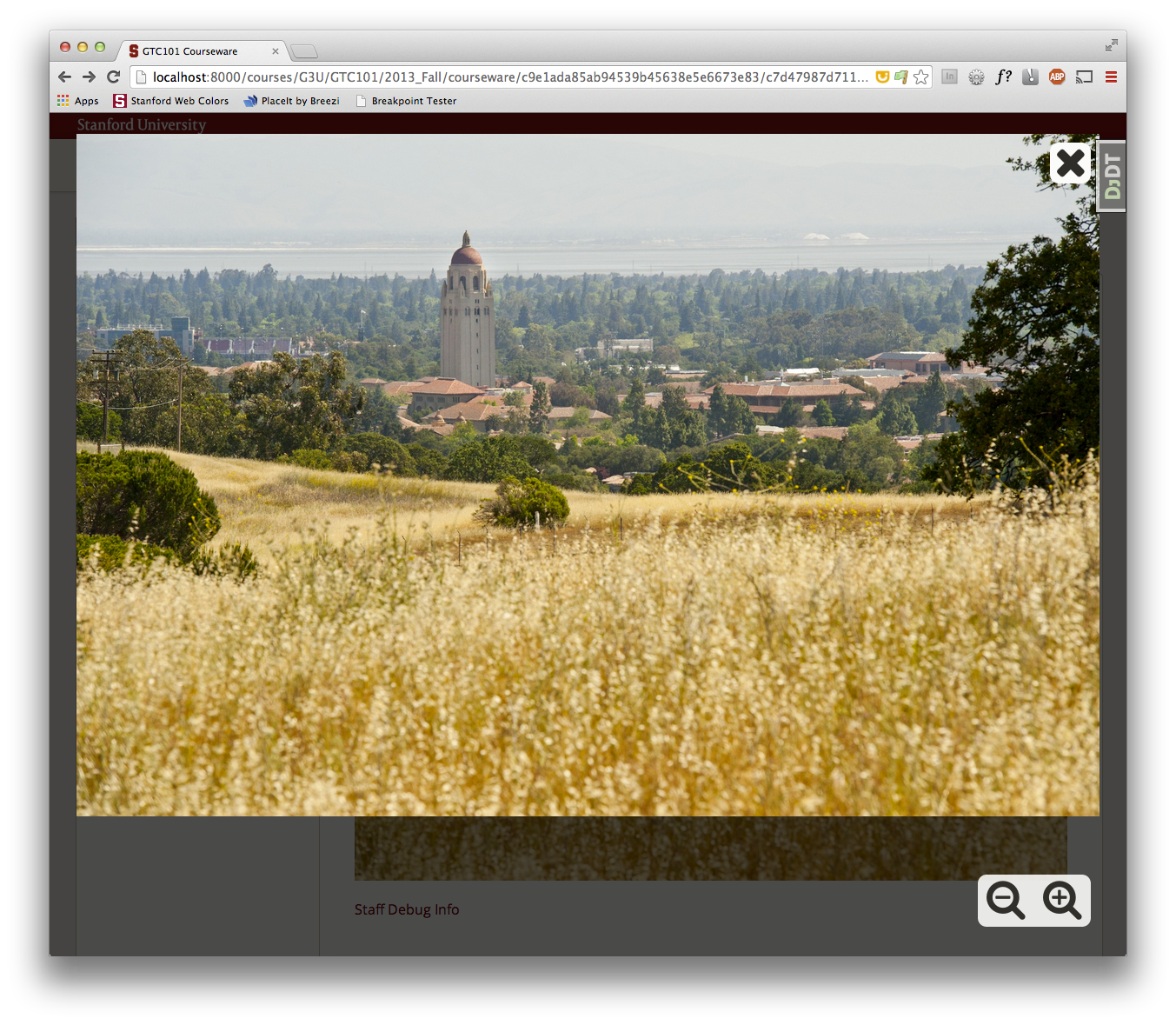
Clicking the + magnifying glass makes the image full size and draggable (via draggabilly):
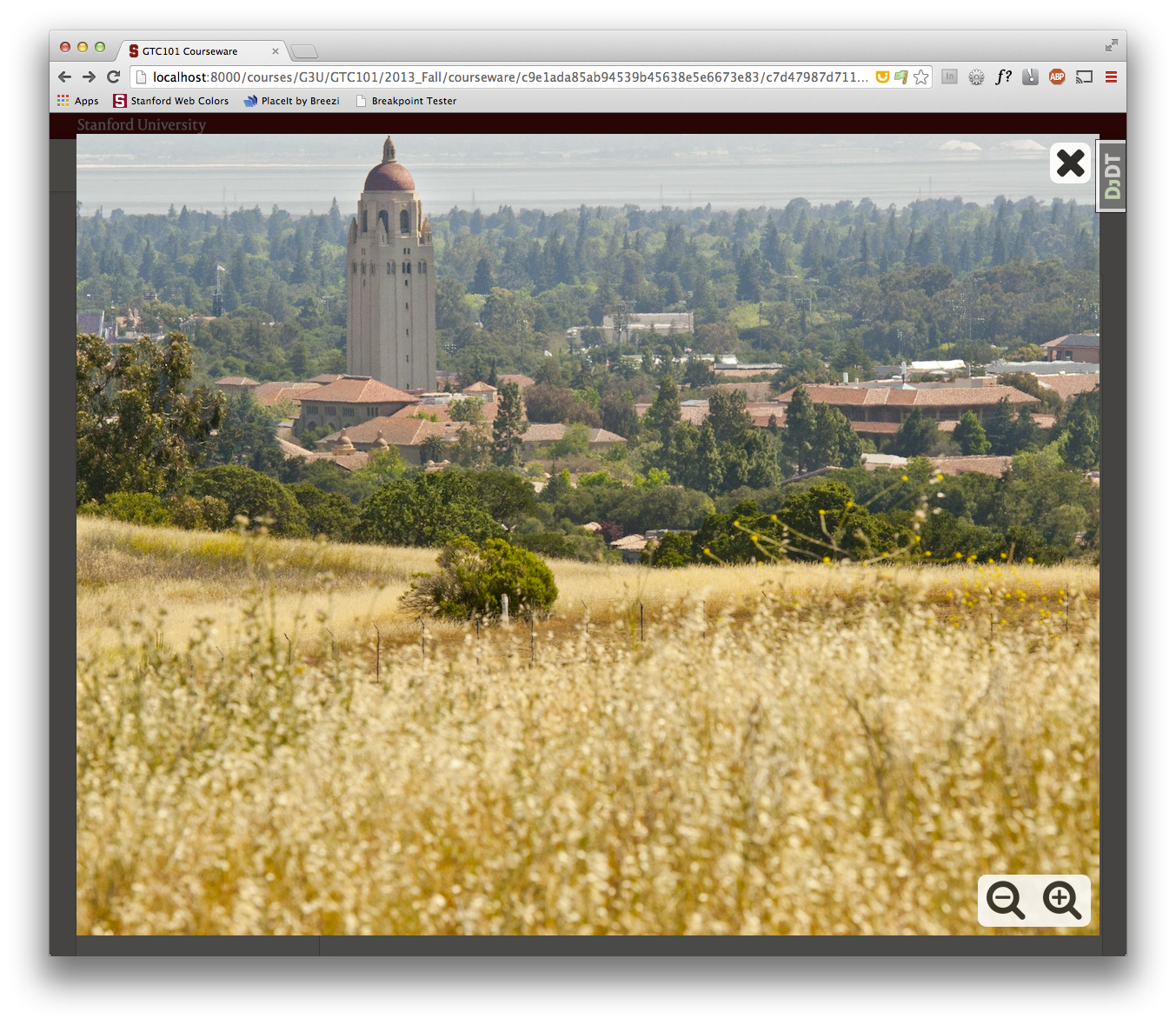
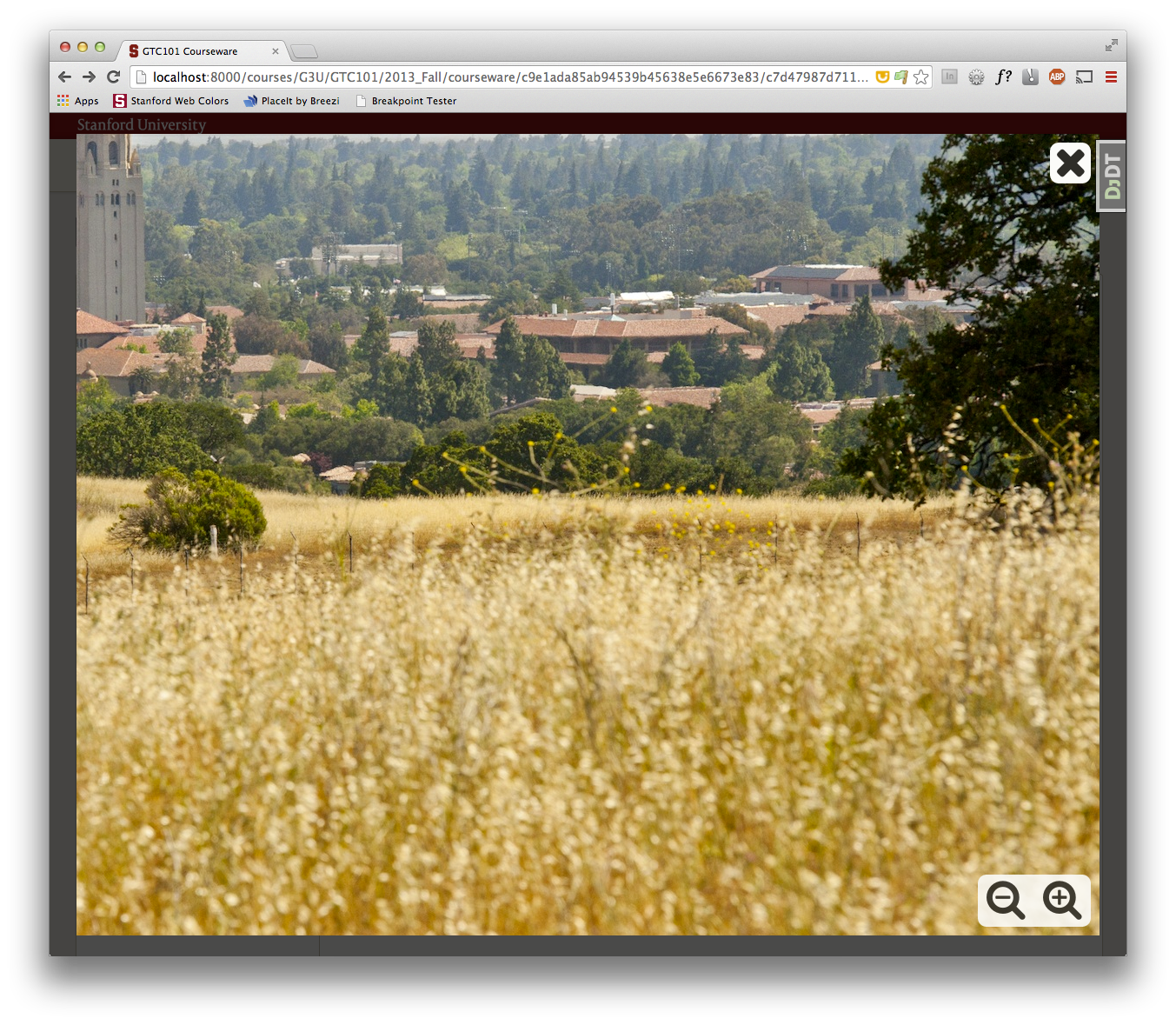
You can click the - magnifying glass to go back to the "fit to screen", or click the X to exit the modal.